
Something caught me off guard last week.
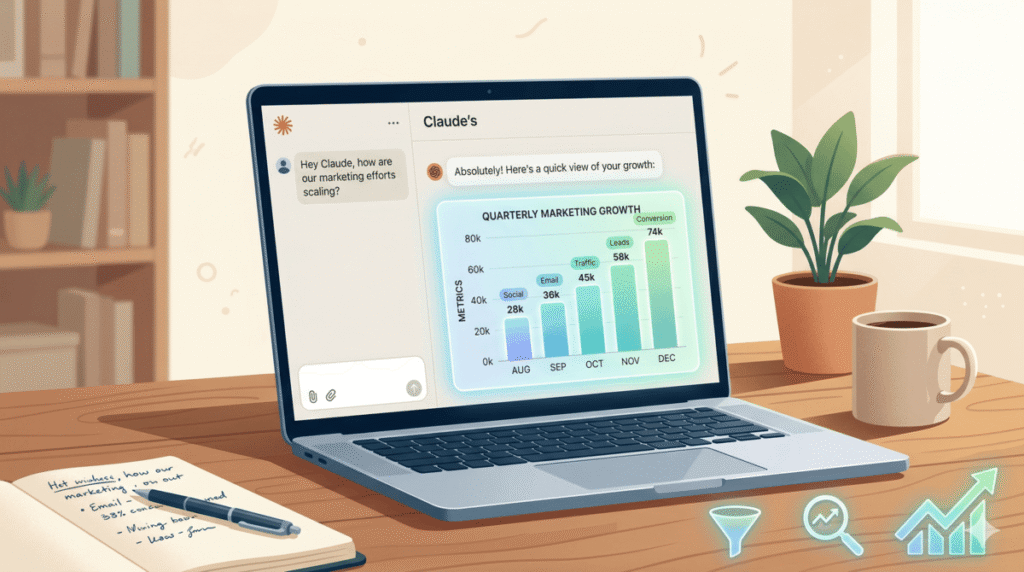
I asked Claude to help me think through a content strategy for a client. Mid-response, without me asking for anything visual, Claude just… built a chart. An actual interactive topic cluster map, laid out inline, that I could click through. No code. No Canva tab. No exporting to Google Slides and reformatting for 20 minutes.
That’s when it hit me: Claude just quietly became a visualization tool.
Anthropic rolled out custom visuals in chat on March 12, 2026 — currently in beta, available to all Claude users on web and desktop. And while the tech press covered it as a novelty (“ooh, pretty charts!”), most missed the actual story for marketers: this changes how fast you can build deliverables, explain strategy to clients, and communicate data without design bottlenecks.
This post breaks down exactly what the feature does, how to trigger it reliably, and seven marketing use cases where it saves real time.
What Claude’s Custom Visuals Actually Are (Not What You Think)
First, let’s get the terminology straight, because there’s genuine confusion between Claude’s visuals and Claude’s existing “Artifacts” feature.
Artifacts (launched mid-2024) open in a side panel. They’re persistent, shareable, and designed for documents, code, or outputs you want to save and reuse. Think of Artifacts as Claude’s “create a separate file” mode.
Custom visuals are different. They appear inline — right inside the chat response, like a paragraph — and they’re temporary. They change or disappear as your conversation evolves. They’re built with HTML and SVG rather than static image generation, which means they’re interactive: you can click elements, toggle inputs, expand them fullscreen, and adjust them with follow-up prompts.
The official framing from Anthropic: these visuals are “pedagogical” — they exist to help you understand something right now, in the moment, not to be a standalone deliverable. That said, you have three ways to preserve them:
- Copy as image — grabs a static PNG for slides or docs
- Download as .svg or .html — saves the interactive version to your machine
- Save as artifact — converts it into a persistent artifact you can iterate on
That last option is the power move. You can use the inline visual to rapidly prototype a diagram, then save it as an artifact for client delivery.
How to Trigger Visuals Reliably
Claude decides when a visual would help — you can’t force it every time. But you can dramatically improve your hit rate with the right prompts.
Automatic triggering
Claude will often generate a visual unprompted when you’re discussing anything involving:
- Process steps or workflows
- Data with multiple variables over time
- Comparisons between options
- Hierarchical relationships (site structure, org charts)
- Funnels or conversion stages
Manual triggering (use these exact phrases)
When Claude doesn’t generate a visual automatically, these prompts reliably trigger one:
- “Draw this as a diagram”
- “Chart this data for me”
- “Visualize how this changes over time”
- “Show this as an interactive flowchart”
- “Map this out visually”
- “Create a visual comparison of these options”
Pro tip: Be specific about the visual type you want. “Show this as a bar chart comparing monthly traffic by channel” will outperform “can you show me a chart?” every time. Give Claude the goal, the data or context, the visual format, and any formatting preferences (colors, labels, groupings).
Platform note: Custom visuals only render on Claude’s web app and desktop app. If you’re using Claude on iOS or Android, you’ll get the text answer without the visual. Cowork sessions also don’t render visuals for other participants. And if you’re using Claude’s remote task feature to kick off work from your phone, keep in mind the visual won’t render on mobile — you’ll want to review the output on desktop.
7 Marketing Use Cases (With Example Prompts)
1. Topic Cluster Maps for SEO Strategy
Instead of building a topic cluster in a spreadsheet and then screenshotting it for a client deck, have Claude map it inline.
“I’m building a content strategy for a fence installation company targeting homeowners in the Pacific Northwest. Create an interactive topic cluster map showing the pillar page ‘residential fence installation’ with at least 8 supporting content pieces. Show the relationship between pages, estimated intent type (informational / commercial / transactional), and suggested internal linking paths.”
Claude will generate a clickable diagram you can expand, adjust, and then save as an artifact or download as an SVG to drop straight into a client presentation. This pairs especially well with the /content-brief and /competitor-gap skills — use the skill to pull keyword data, then trigger a visual to map the cluster before you start writing.
2. Funnel Visualization for Campaign Strategy
Explaining a multi-channel funnel in bullet points is painful. A visual does the work in seconds — and you can iterate it in real time during a strategy conversation.
“Draw an interactive marketing funnel diagram for a B2B SaaS company targeting mid-market operations teams. Show the funnel stages (Awareness → Consideration → Decision → Onboarding), the primary channel at each stage (paid search, retargeting, email, sales), and the key conversion action at each stage.”
3. Competitive Positioning Chart
This one’s genuinely useful for quick competitive research outputs. Ask Claude to plot competitors on a 2×2 matrix based on any axes you care about.
“Create an interactive 2×2 positioning matrix. X-axis: Price (budget to premium). Y-axis: Specialization (generalist to niche specialist). Plot these 5 fence companies: [Company A, B, C, D, E] based on the following descriptions: [paste descriptions or URLs]. Make each dot clickable to show a brief positioning summary.”
4. Client Reporting Chart (Monthly Recap)
Stop screenshotting GA4 charts with ugly default styling. Have Claude build a clean, branded summary chart from the numbers you paste in.
“Create an interactive bar chart showing monthly organic traffic for the last 6 months: Jan 4,200 / Feb 3,900 / Mar 4,700 / Apr 5,100 / May 5,600 / Jun 6,200. Use green bars, label each bar with the session count, and add a trend line. Title it ‘Organic Traffic Growth — H1 2026’.”
Download as SVG. Drop into your report. Done. If you want the full picture — live GSC and Ahrefs data pulls, narrative generation, and auto-publishing to Notion — see how to automate monthly client reports with Claude Code. The custom visual sits cleanly inside that workflow.
5. Content Production Workflow Diagram
If you’re onboarding a new writer or documenting an agency process, converting your SOP into a flowchart is a 30-second task now.
“Draw a flowchart for our content production workflow. Steps: Brief → Keyword research → Outline approval → Draft → SEO review → Editor approval → Publish → Distribution. Include decision points at ‘Outline approval’ (approved or revise) and ‘Editor approval’ (approved or revise). Show who owns each step: [assign roles as you list them].”
6. Google Ads Campaign Architecture
Visualizing campaign structure before you build it in Google Ads saves hours of restructuring later. Claude can map out the account hierarchy visually from a brief description.
“Create an interactive hierarchy diagram for a Google Ads account with 3 campaigns: Brand, Residential Services, and Commercial Services. Under Residential, show 4 ad groups: Wood Fences, Vinyl Fences, Chain Link, and Gate Installation. Under Commercial, show 3 ad groups: Industrial Fencing, Security Fencing, and Temporary Fencing. Each ad group should be expandable to show 2-3 sample keywords.”
7. Email Sequence Flowchart
Mapping automated email sequences is a classic “looks simple but gets complicated fast” problem. A visual with branching logic makes it reviewable in seconds.
“Map out a 5-email onboarding sequence as an interactive flowchart. Trigger: Free trial signup. Show the email name, send timing (Day 0, Day 2, etc.), subject line, and primary CTA for each email. Add a branch after Email 3: if user has logged in → continue to Email 4; if not → send a re-engagement email instead.”
The Honest Limitation: Pretty ≠ Accurate
The sharpest critique I saw in the Hacker News thread when this launched: “Fancy graphics mask underlying data quality issues. The thing that was a signifier of effort is now misleading us into trusting data that got no extra effort.”
That’s a real risk. A polished-looking chart built on bad inputs — wrong numbers, vague descriptions, hallucinated competitor data — still looks credible. Claude’s visuals can lend unwarranted authority to sloppy inputs.
The rule: Verify before you share. Claude’s custom visuals are excellent for thinking tools, strategy diagrams, and charts built from your own data. They’re riskier when Claude is inferring the underlying data (like competitor positioning) without sources you’ve verified.
Other limitations to know:
- No mobile — iOS and Android don’t render visuals yet
- Beta quality varies — complex visualizations sometimes miss the mark; iterate
- Shared chat links — recipients must be logged into Claude to see visuals
- Claude may skip it — not every request triggers a visual; use explicit prompts as a fallback
- Opus for complexity — if you’re building something intricate, switch to Claude Opus for better visual output
How Claude’s Visuals Compare to ChatGPT and Gemini
ChatGPT has had data analysis via Code Interpreter for a while, and it’s powerful for uploaded datasets. But it requires more explicit prompting, and the output styling often defaults to generic matplotlib charts. Gemini introduced interactive charts for Gemini Ultra subscribers — but gates premium visual features behind a higher-tier subscription.
Claude’s differentiation: custom visuals are available on all plans including free, they trigger automatically when context warrants it, and they render inline (not in a separate panel) which makes the conversation feel more fluid. The HTML/SVG approach also means the outputs are clean-looking by default without requiring design prompting.
The tradeoff: ChatGPT’s code interpreter is still stronger for serious quantitative data analysis on uploaded files. Claude’s visuals shine for strategy diagrams, frameworks, and custom charts built from pasted data — the exact things marketers build most.
The Workflow That Actually Makes This Useful
Here’s how I’d integrate custom visuals into a real agency workflow:
- Strategy call prep: Build the visual in Claude before the call. Screenshot it or save as artifact.
- During client calls: Open Claude on desktop, generate visuals live. Clients can see you building the strategy in real time — it’s a strong confidence signal.
- Deliverable creation: Use inline visuals to prototype, then save as artifact → refine → download as SVG → embed in Google Slides or Notion client reports.
- SOPs and training: Generate workflow diagrams from your existing process descriptions. Update by editing the description, not the diagram.
The key mental shift: stop thinking of Claude as a writing tool and start thinking of it as a thinking tool that also writes. Visuals are the missing bridge between “Claude helped me think through this” and “Claude helped me communicate this.”
Frequently Asked Questions
Do I need a paid Claude plan to use custom visuals?
No. Custom visuals are available to all Claude users including the free tier. The feature is currently in beta and enabled by default. You don’t need to turn anything on.
What’s the difference between Claude’s custom visuals and Claude Artifacts?
Artifacts open in a side panel, are persistent, and designed for shareable outputs you want to keep. Custom visuals appear inline inside the chat response, are temporary (they change as your conversation evolves), and are designed for real-time understanding. You can convert an inline visual into an artifact by clicking “Save as artifact” — which is often the best of both worlds.
Why isn’t Claude generating a visual when I ask for one?
Claude uses judgment to decide when a visual helps — it doesn’t generate one for every request. If Claude gives you text when you wanted a chart, explicitly ask: “Draw this as a diagram” or “Show this as an interactive bar chart.” Being specific about the visual type and data dramatically improves the hit rate. Also confirm you’re on the web or desktop app; mobile doesn’t render visuals.
Can I use these visuals in client presentations?
Yes. The simplest approach: click “Copy as image” and paste directly into Google Slides, PowerPoint, or a Notion page. For higher quality, download as SVG (vector format, scales without pixelation). If you need an interactive version to share with a client, download as HTML and host it, or save as a Claude artifact and share the link (recipients need to be logged in to Claude to view it).
Are Claude’s interactive visuals accurate? Can I trust the data?
Trust the data you provide; be cautious about data Claude infers. When you paste in your actual numbers and ask Claude to chart them, the output reflects your data. When Claude is estimating competitor positioning or generating statistics from context, always verify before sharing externally. The visual quality doesn’t indicate data quality — beautiful charts can still contain hallucinated numbers.
What types of visuals can Claude create for marketing work?
The most useful marketing applications: bar and line charts (traffic, revenue, campaign performance), topic cluster maps, funnel diagrams, competitive positioning matrices (2×2), flowcharts and SOPs, content calendars, campaign architecture hierarchies, email sequence maps, and concept framework diagrams. Basically anything you’d normally draft in FigJam, Whimsical, or a spreadsheet chart builder.
How do I get better quality visuals from Claude?
Four things help most: (1) Be specific — name the chart type, axes, and data points explicitly. (2) Add formatting preferences — “use blue and green, label each bar, add a trend line.” (3) Iterate — ask Claude to adjust colors, reorder elements, or simplify after seeing the first version. (4) Switch to Claude Opus for complex diagrams — it handles intricate visualizations more reliably than Sonnet or Haiku.
The Bottom Line
Custom visuals in Claude aren’t a gimmick. For marketers, they solve a specific and expensive problem: the gap between “I have a strategy” and “I can communicate this strategy quickly.” Strategy decks, client reports, process documentation, and campaign architecture diagrams all used to require a separate design step. That step is now optional.
The feature launched quietly two weeks ago and most marketing teams haven’t touched it. That’s your window.
Open Claude on desktop, ask it to map out your next content strategy as a topic cluster, and see what it builds. I’d bet it saves you 30 minutes before noon.
If you’re newer to Claude Code and want to understand the bigger picture before going feature-deep, start with Why Claude Code Changes Everything for Performance Marketers. If you want a structured system covering 20+ specific applications for SEO, paid media, reporting, and client management — that’s exactly what The AI Marketing Stack covers.